
 Straight2Bank
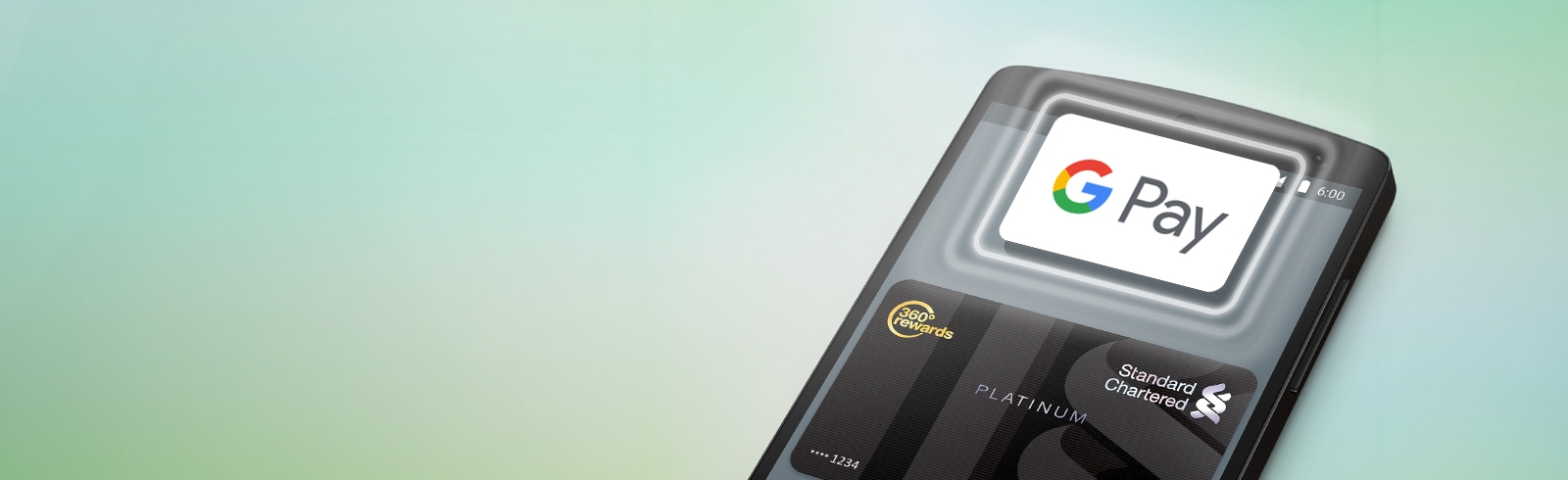
Tap. Pay. Done.
Google Pay – a fast, easy, rewarding way to pay
Change the way you pay
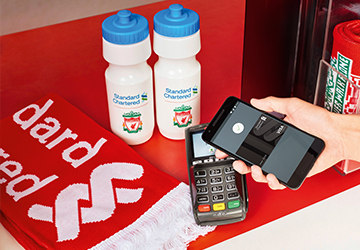
Use Google Pay anywhere that contactless payments are accepted
In-Store
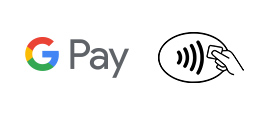
Look for one of these symbols at checkout.
In-App

For in-app purchases, look for the “Buy with Google Pay” button

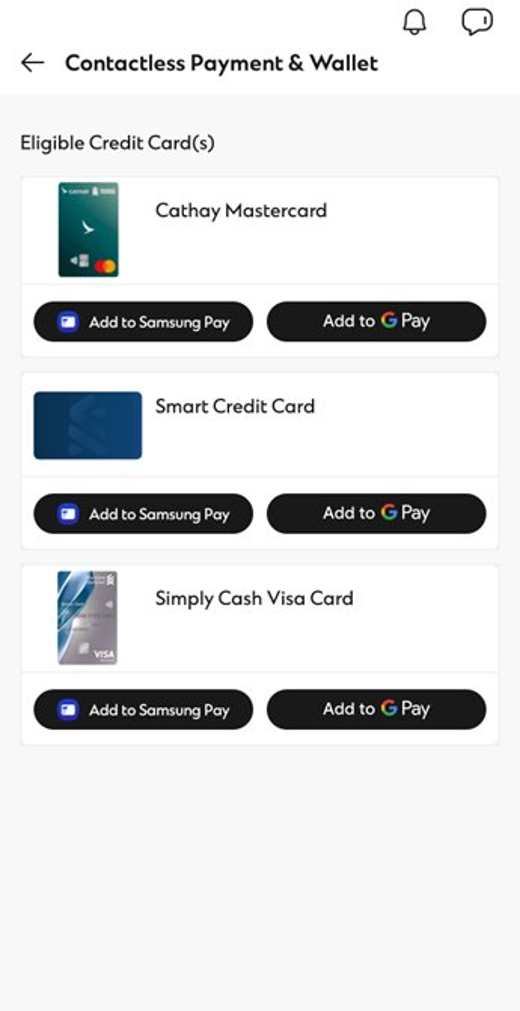
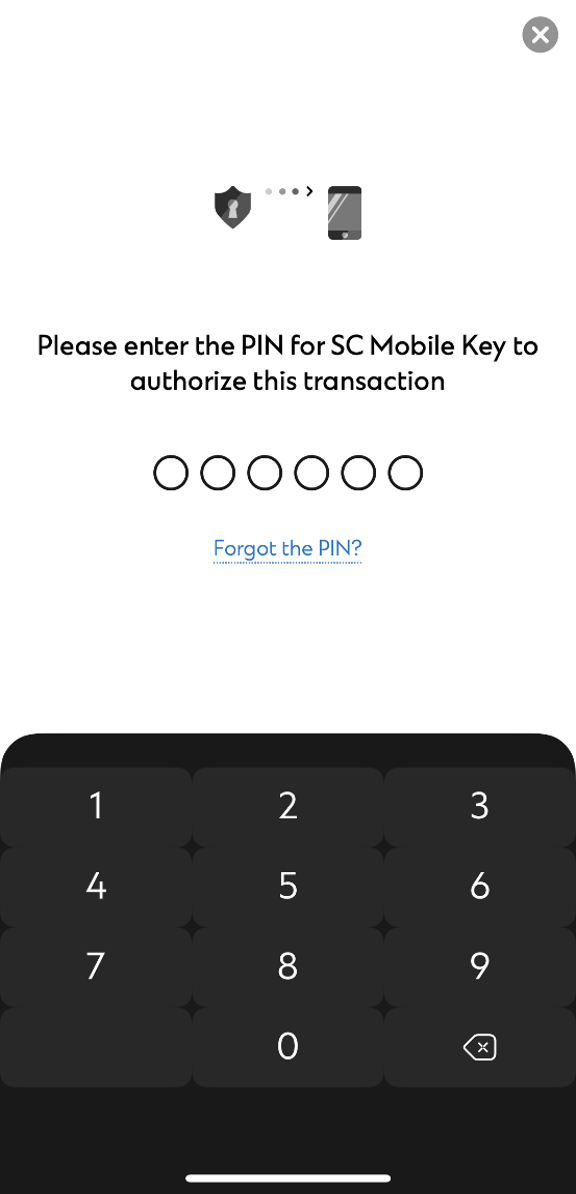
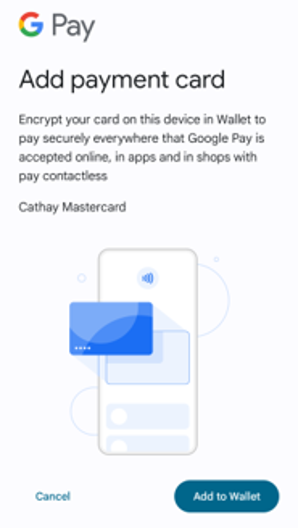
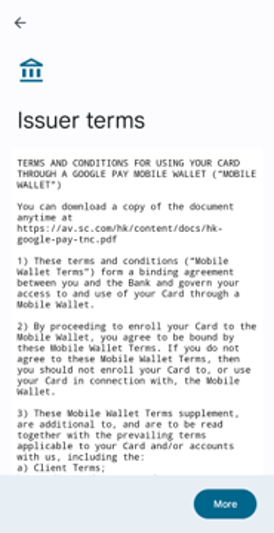
Setup is simple with Google Pay (for credit cards only)
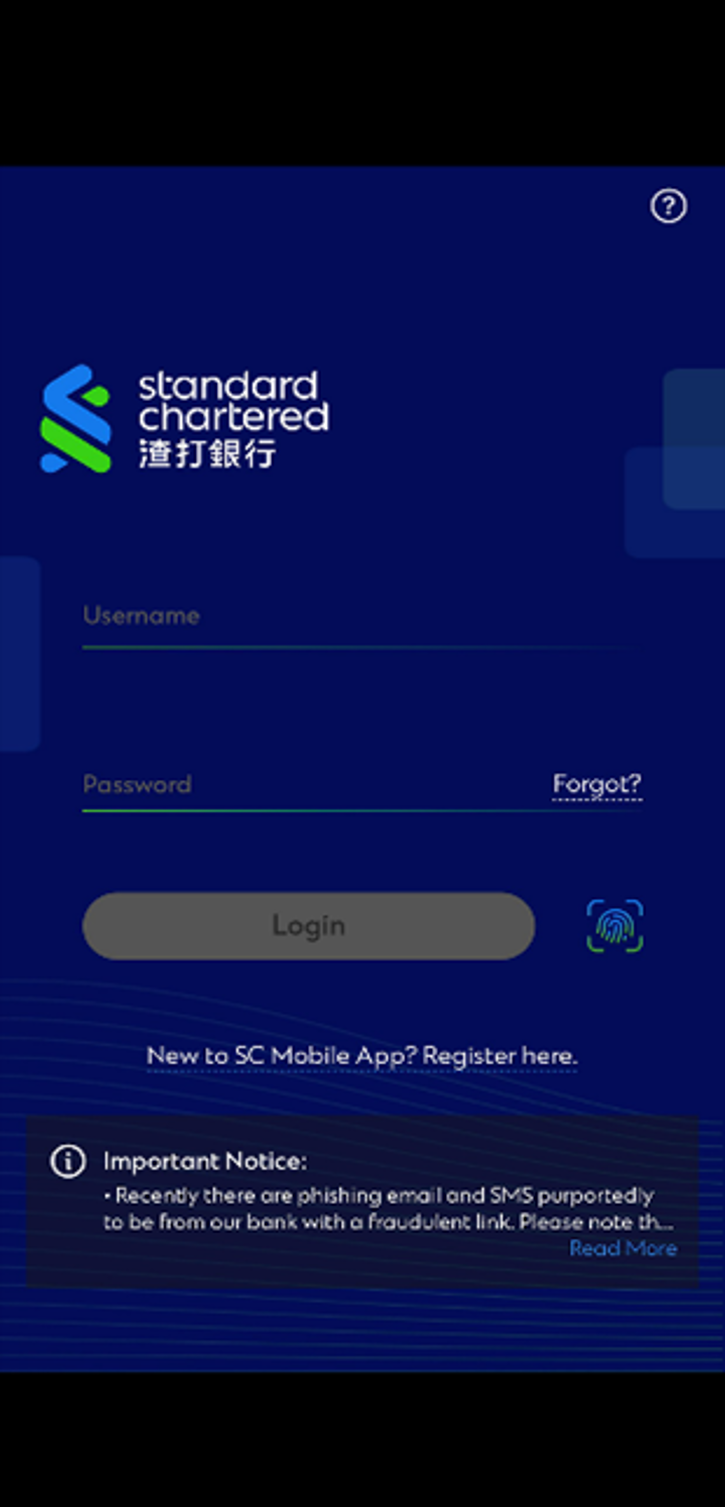
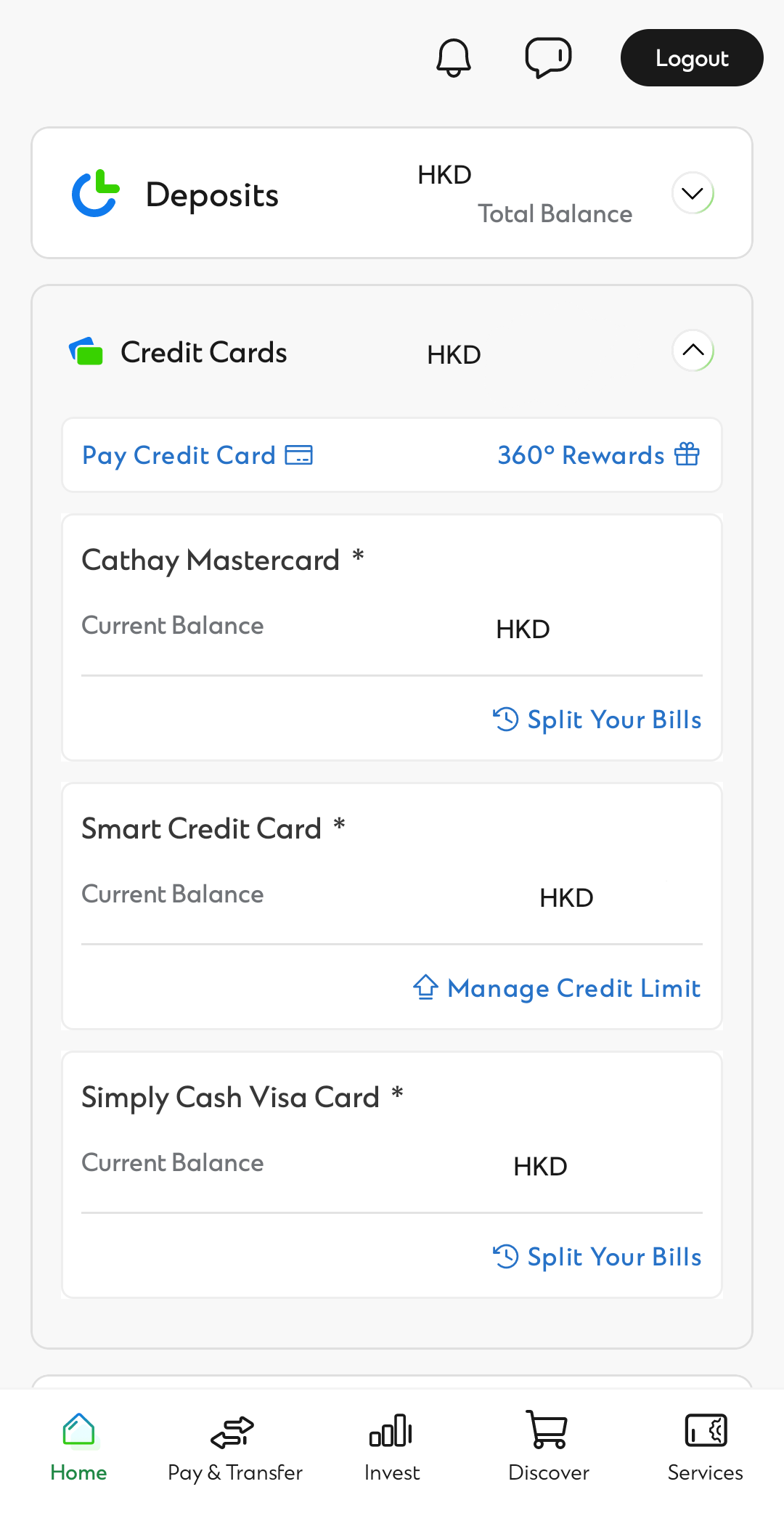
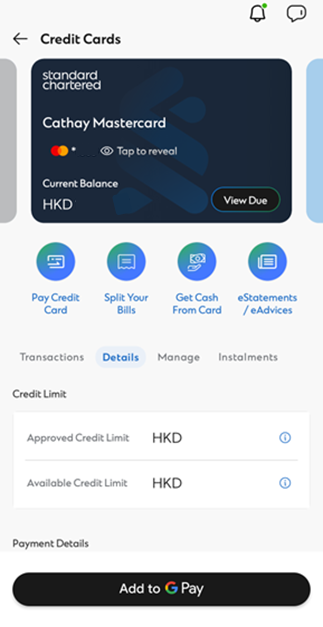
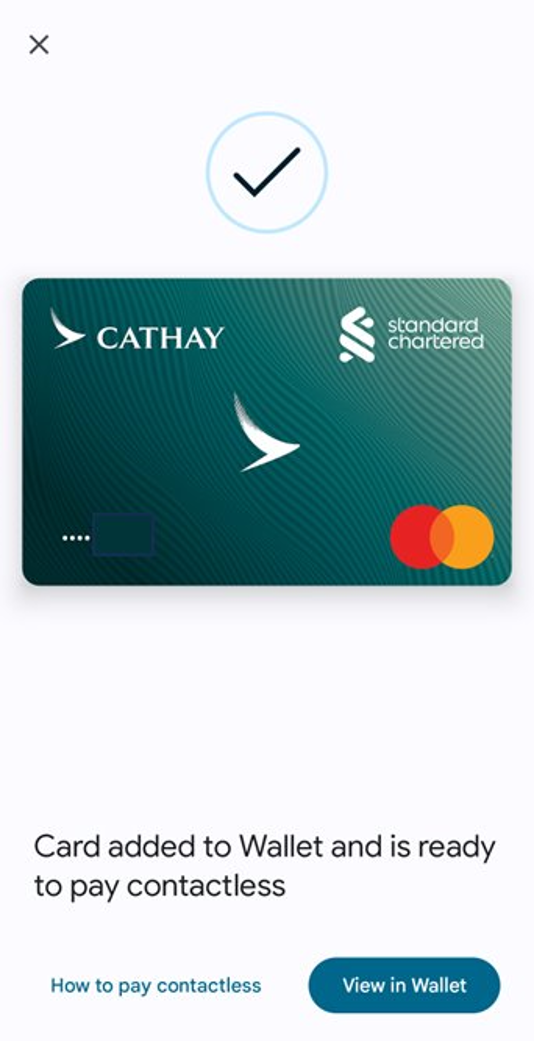
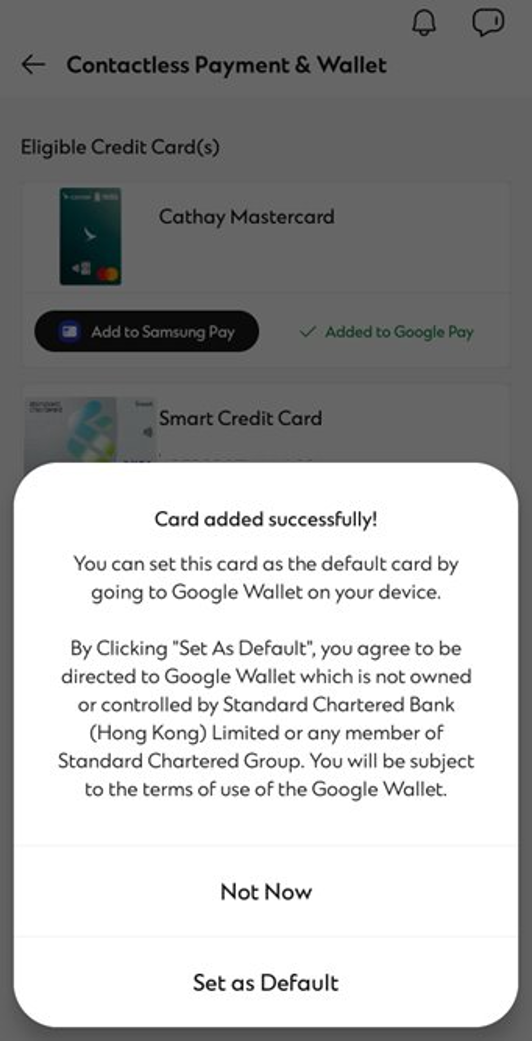
Store your credit cards in Google Wallet app to make payments via Google Pay.
FAQ
The following cards issued by Standard Chartered (Hong Kong) Bank are eligible to use Google Pay: Standard Chartered Credit Card and its Co-branded Card, MANHATTAN Credit Card and its Co-branded Card (except Standard Chartered WorldMiles Card, Standard Chartered UnionPay Credit Card, Standard Chartered Business Card and Standard Chartered Corporate Card).
No, We will not charge you for using Google Pay
NFC-enabled devices running on Android 5.0 (Lollipop) or higher will support Google Pay. To check your Android version:
- Open your phone’s Settings app
- Tap “System”
- Tap “About phone”
- Scroll down to “Android version” and “Android security patch level”
Always keep your phone locked when not in use and do not leave your phone unattended.
Google Pay can be used wherever you see the contactless payment symbol. When buying In-apps, just look for the “Buy with Google Pay” button at check out.
Yes, you can load more than one card.
The first card that you add to Google Pay becomes your default payment card. This is the card that’ll be charged when you pay with your phone. The first card that you added will remain your default card unless you change it.
Change your default payment card
You can change your default card in two ways:
On your phone
- Open the Google Pay app.
- If you have multiple Google Accounts in Android Pay: in the top-left corner, touch your name and then choose an account.
- Double tap a card and then touch Set as default card.
- Or touch and drag a card to the “Default card” spot at the top of the app’s Home screen.
On the web
- Sign in to payments.google.com.
- On the left, click Payment methods.
- To the right of a card, click Set as default.
There are two ways to remove a payment card:
On your phone
- Open the Google Pay app.
- If you have multiple Google Accounts in Google Pay: in the top-left corner, touch your name and then choose the account that you want to remove a card from.
- Double tap the card that you want to remove.
Scroll down and then touch Remove card.
On the web
- Sign in to payments.google.com.
- On the left, click Payment methods.
- To the right of the card, click Remove.
Process a refund as how you would usually do for any contactless transactions. Select the card you used to make the purchase and hold your device near the contactless terminal. For verification purpose, customer may use the virtual account number to process a return. To view the last four or five digits of the virtual account number go to “Card details” or “Transaction details”.
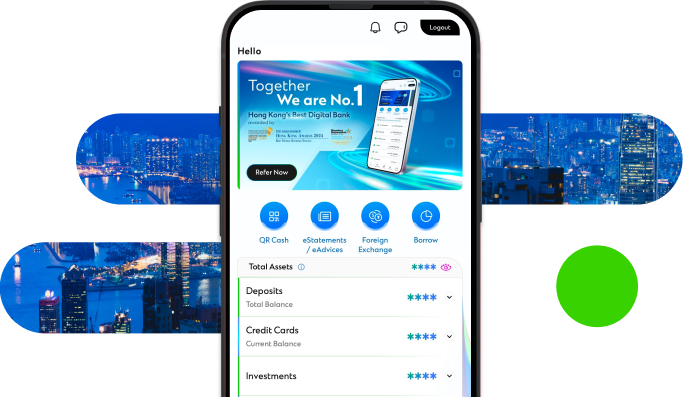
Manage your finances on the go
Experience SC Mobile App now

Scan QR code to download SC Mobile App now
for Android users without Google Play, please click here to download the Android application package (APK)



Security Tips
Google Pay will create a unique virtual account number for your payment information, your name and full card details are never shown in the app and never shared with the store. Google stores your payment information on secure servers and encrypts it with industry-standard SSL (secure socket layer) technology. If your phone is ever lost or stolen, you can easily find, lock, and erase your phone using Android Device Manager.
Tokenization is a method of replacing your sensitive payment card information (Card Number, Expiration Date, Security code, etc.) with a device-specific ‘Token’ which acts as a surrogate value. In mobile payments, Tokens are used to protect your payment information and to reduce the security risks inherent to plastic cards. Your card information is never stored in your phone.
Anyone with your device ‘Passcode’ or a fingerprint registered to your device will be able to authorise transactions using your Card with Google Pay.
You must keep your device safe and secure, and your device ‘Passcode’ secret. Do not let anyone else to have their fingerprint registered to your device while your Card is registered with it.
Android Device Manager will help you find and erase your phone. Or, simply search “Find my phone” and Google will show you where it is on a map. Also, please call the Bank immediately to block the card/token which is set up on the device.
Alternatively, we can help you to suspend your token so that your cards cannot be used in Google Pay.
If you lose your card, please contact us immediately at (852)2886-4111.
Your physical card will be deactivated, and you will not be able to continue to use Google Pay with this card.
If you have previously registered your card on Google Pay. When your card is due to renewal, your replacement card will automatically be registered back to Google Pay when you activate your renewal card.
If you receive a replacement card, you will need to remove the original payment card from Google Pay.
When performing a factory data reset/ format or update, all payment information in Google Pay will be deleted.
Please make sure to delete your card information from Google Pay app before sending your device for repair. All payment information in Google Pay will be deleted after the repair.
Please go to support.google.com/googlepay for more information.
Near Field Communication or NFC is a method of wirelessly transmitting data using radio waves. Google Pay uses NFC to wirelessly transmit payment data to payment terminals with NFC readers that have been activated for use.
Google Pay uses NFC to wirelessly transmit payment data to payment terminals after authentication with NFC readers that have been activated for use.