
 Straight2Bank
Online Securities Services FAQs – Getting Started
How can I enable TLS1.1 and/ or TLS1.2 on web browsers for using stock quotes service?
Microsoft Internet Explorer
- Open Internet Explorer
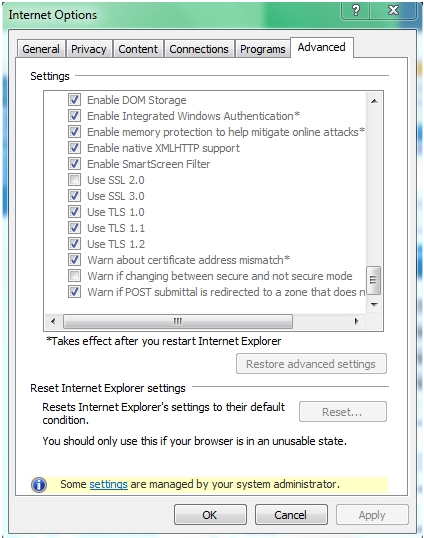
- From the menu bar, click Tools > Internet Options > Advanced tab
- Scroll down to Security category, manually check the option box for Use TLS 1.1 and Use TLS 1.2
- Click OK
- Close your browser and restart Internet Explorer
Google Chrome
- Open Google Chrome
- Click Alt F and select Settings
- Scroll down and select Show advanced settings…
- Scroll down to the Network section and click on Change proxy settings…
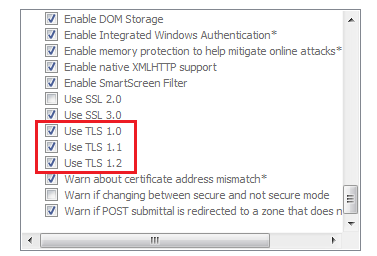
- Select the Advanced tab
- Scroll down to Security category, manually check the option box for Use TLS 1.1 and Use TLS 1.2
- Click OK
- Close your browser and restart Google Chrome
Mozilla Firefox
- Open Firefox
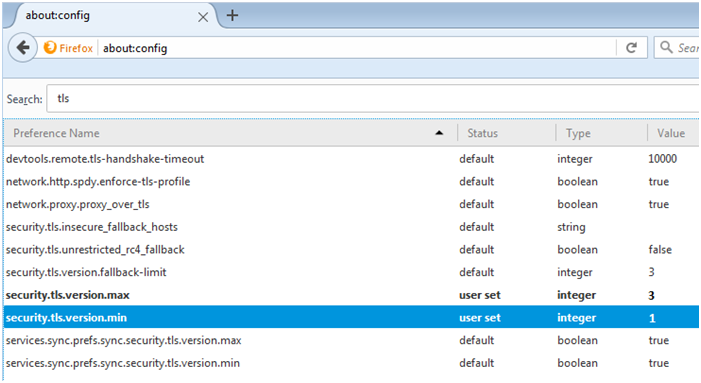
- In the address bar, type about:config and press Enter
- In the Search field, enter tls. Find and double-click the entry for security.tls.version.max
- Set the integer value to 3 to force protocol of TLS 1.3
- Click OK
- Close your browser and restart Mozilla Firefox
Opera
- Open Opera
- Click Ctrl plus F12
- Scroll down to the Network section and click on Change proxy settings…
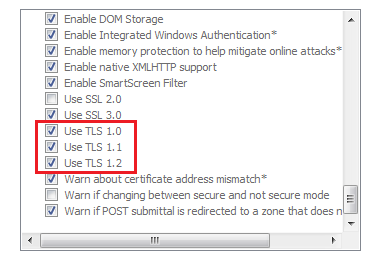
- Select the Advanced tab
- Scroll down to Security category, manually check the option box for Use TLS 1.1 and Use TLS 1.2
- Click OK
- Close your browser and restart Opera
Apple Safari
There are no options for enabling SSL protocols. If you are using Safari version 7 or greater, TLS 1.1 and TLS 1.2 are automatically enabled.